
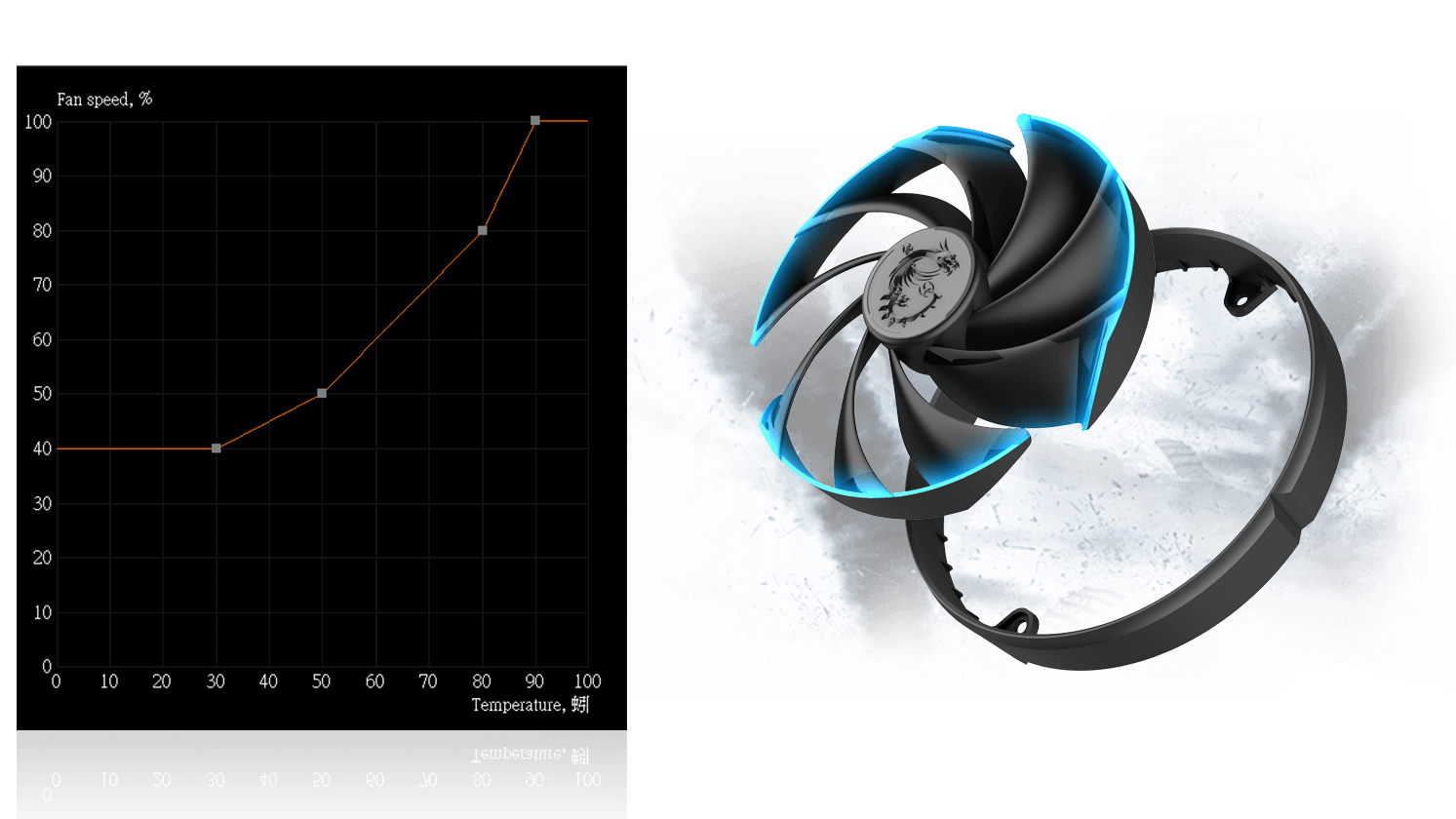
Pick a thermal target based on your case: not an influencer chart
A big tower with great intake can hold lower temperatures at moderate RPM. A compact case may need higher RPM under load. Your curve should reflect your actual temperature bands during real games, not a theoretical ideal.
Avoid the pulsing trap
Steep steps near common gaming temperatures cause fans to cross the threshold repeatedly. Smooth the middle region and avoid stacking multiple sharp corners close together.
GPU fan vs case fans
GPU fans respond to hotspot and package thermals; case fans change overall intake/exhaust. If GPU fans max while case fans idle, you may be fighting symptoms instead of airflow.
Laptop reality check
Some laptops ignore certain fan requests or override them with OEM policies. If changes never stick, research your model’s EC behavior before spending hours perfecting a curve that cannot apply.
Next steps
After stabilizing noise, revisit power limits: sometimes a small power reduction lowers temperatures enough to run fans quieter without sacrificing perceived performance.
Elsewhere on this site
Keep context when you leave this page
Long guides read best with the FAQ for quick recovery steps and the glossary for vocabulary. The home page links the full screenshot tour and download reminders.