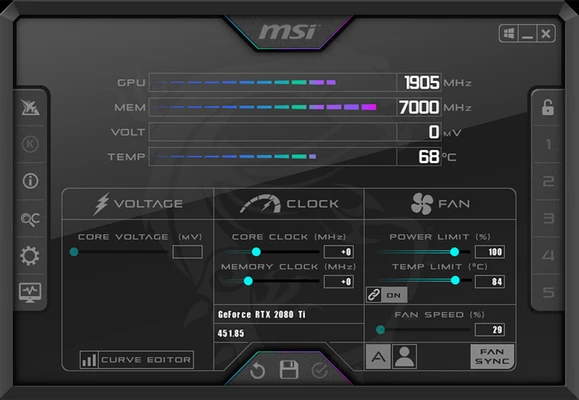

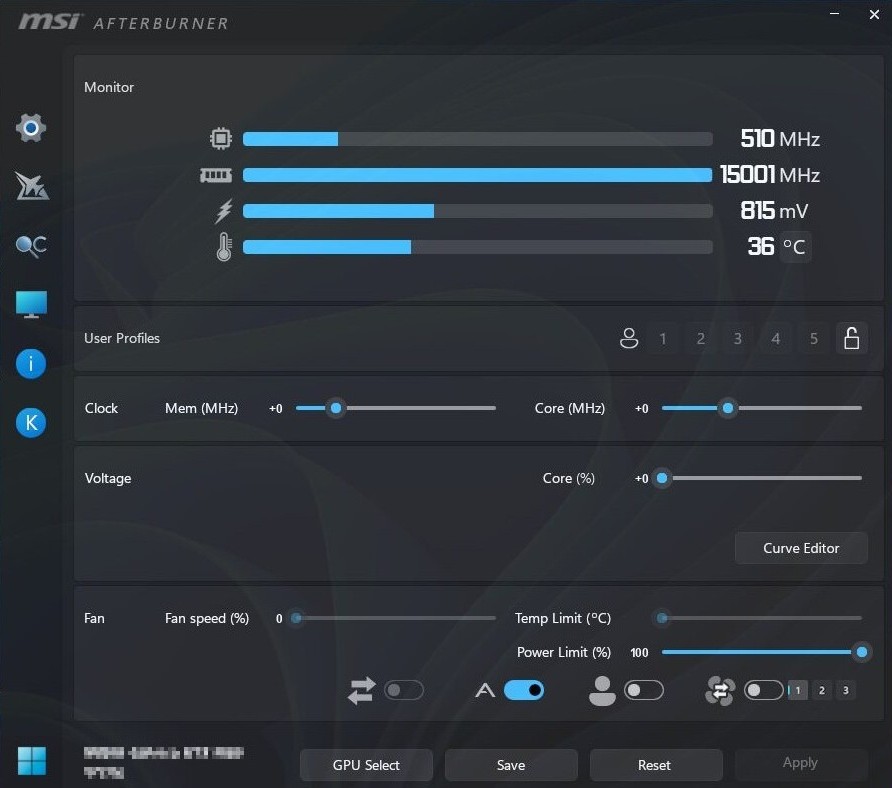
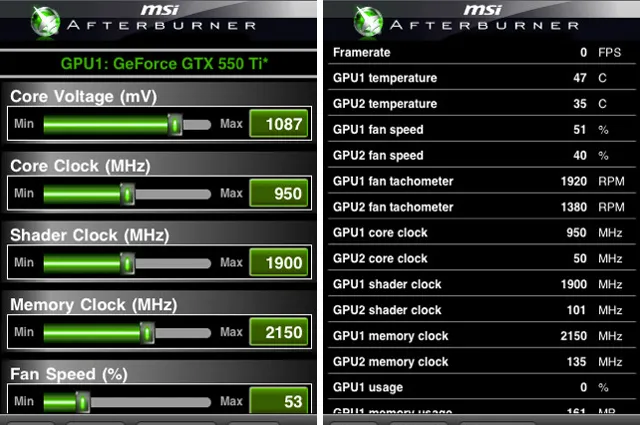
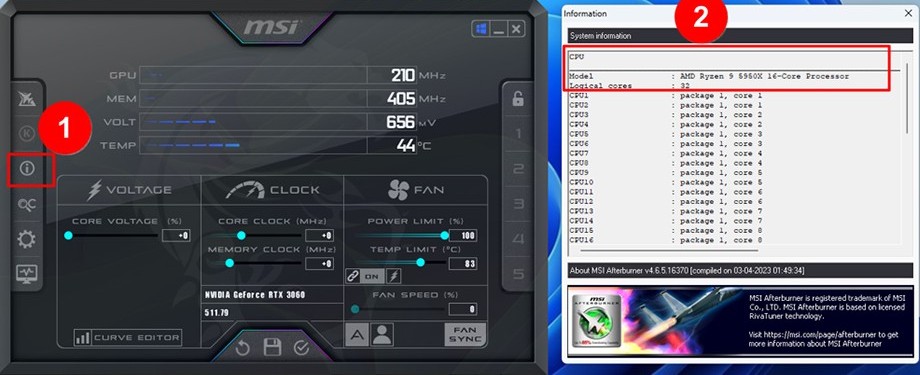
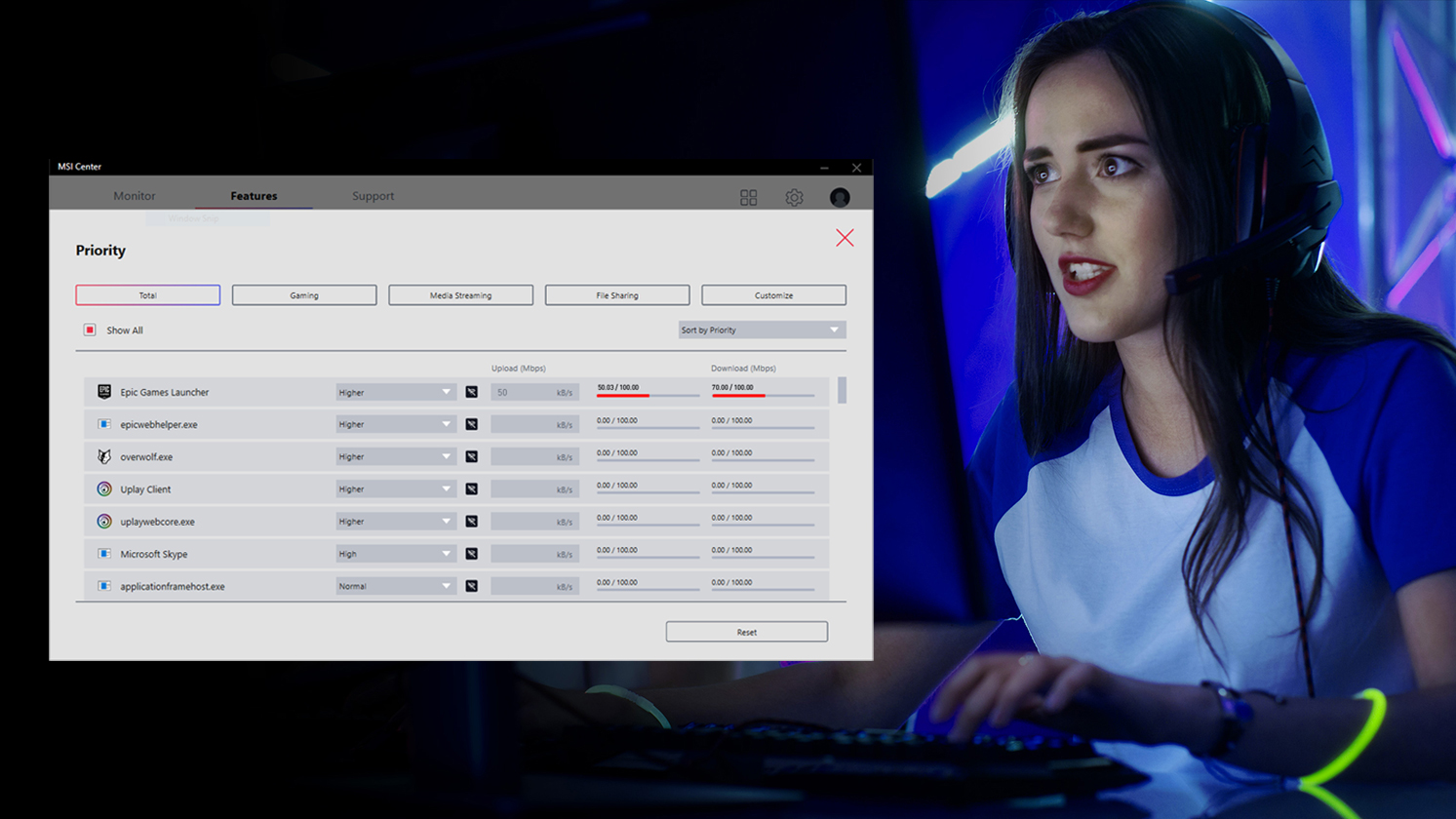
Hardware monitoring
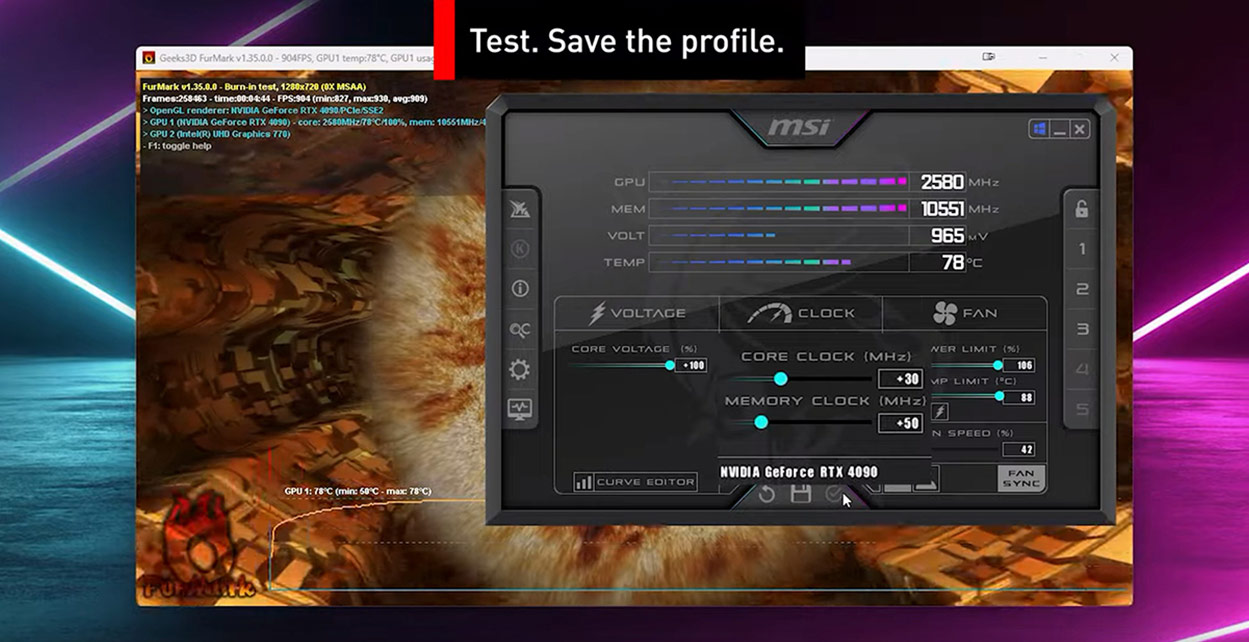
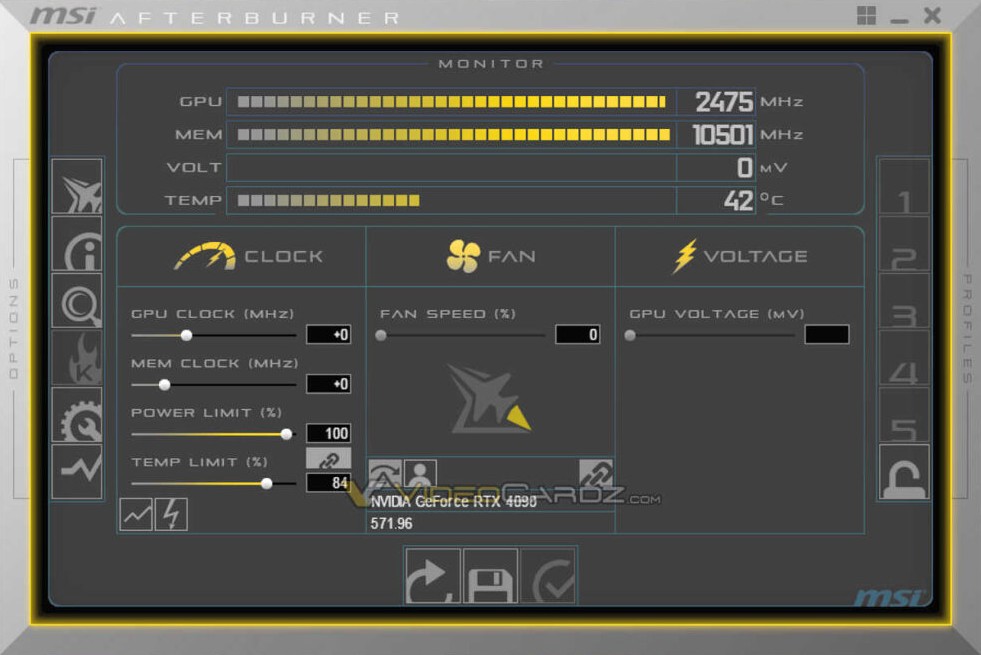
Track GPU temperature, clock behavior, voltage reporting (where available), power draw estimates, and fan RPM in one place. Monitoring is the foundation for stable tuning.
GPU tuning & monitoring
MSI Afterburner is a free utility used by millions to monitor GPUs, tune power limits, build fan curves, and pair with RivaTuner Statistics Server (RTSS) for overlays. This guide explains what each control does, how to stay stable, and how to fix common issues.
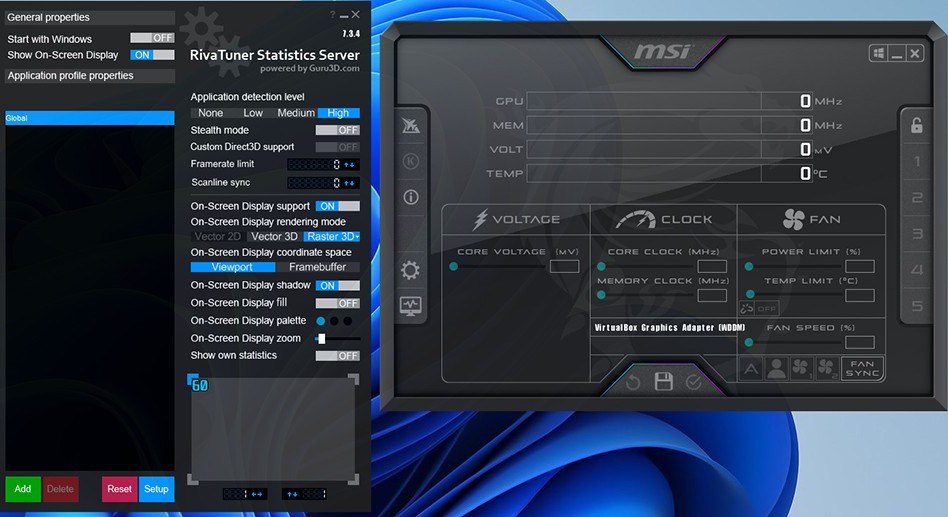
Practical flow
Treat tuning like debugging: change one axis at a time, read the graphs, then decide what actually moved. Rushing sliders in random order is how stable systems turn into random reboots.
Establish baseline temperatures, sustained clocks, power-limit behavior, and fan response under a load you actually run. If you do not know what “normal” looks like, you cannot tell whether a change helped.
Fan curves and power headroom often explain perceived instability more than a few megahertz of core clock. Fix throttling and noise first, then chase small frequency gains.
Shader compilation, open-world streaming, and VRAM-heavy scenes stress different paths than a single synthetic loop. Short tests hide problems that show up twenty minutes into play.
Driver updates and reinstalls reset assumptions. Keep a simple text log of stable offsets, fan curve shapes, and undervolt points so recovery takes minutes instead of weekends.
Scope
We write for people who can install a GPU driver and read a graph, but who still want a calm explanation of limits and trade-offs. That audience is wide. It still has edges.
If you are in the “good fit” column, the guides below are written to be read in any order. Pick the symptom that matches tonight’s problem.
Long reads on this site
Each article is written to connect symptoms to causes: what to check first, what to ignore, and when to stop and reset. Follow the internal links inside posts for glossary terms and cross-checks.
Structured checks for driver health, multi-GPU quirks, and laptop limitations when Afterburner refuses to see a GPU or keeps controls disabled.
Open the detection guideHow tight VF curves bite under transient loads, why memory errors feel different from core instability, and a recovery-first mindset.
Read the stability primerInjection caveats, fullscreen modes, anti-cheat realities, and what scanline sync is trying to solve for frame pacing.
Explore RTSS notesHow automated curves behave on supported NVIDIA GPUs, why silicon variance matters, and how to treat results as a baseline rather than a guarantee.
Read the OC Scanner guideAvoiding fan hunting, choosing slopes for your case airflow, and setting expectations for laptops versus desktops.
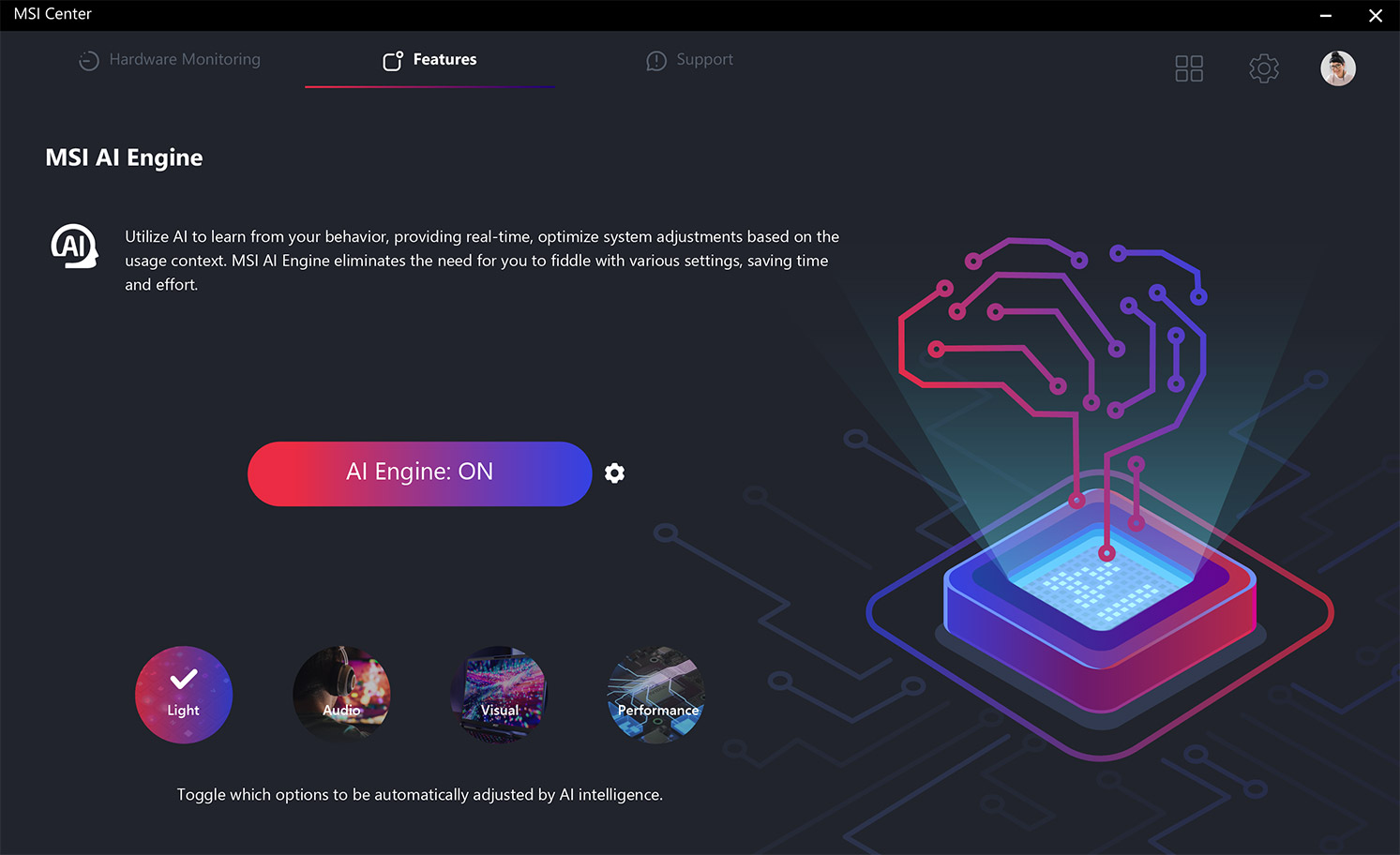
Tune fans deliberatelyWhen MSI Center overlaps with Afterburner, what each stack is good at, and how to avoid fighting two controllers for the same fans.
Compare approachesPrefer a single stream? Start with the FAQ for short answers, then dive articles by symptom.
Browse all blog postsBefore you tune
Afterburner cannot fix a weak PSU rail, a clogged heatsink, or a half-installed driver. Spend a few minutes on these checks so your graphs tell a true story when you start moving sliders.
Raising power limits increases average draw. Separate PCIe cables for high-power cards matter more than chasing +30 MHz. If the PC already reboots under stock gaming loads, fix power stability before overclocking.
Fan curves cannot invent intake air. Clean filters, confirm exhaust path, and re-seat a suspicious cooler before assuming the silicon is “bad.”
Vendor tools, motherboard fan apps, and Afterburner can all touch overlapping behaviors. Decide who owns GPU fans and power behavior on your system to avoid contradictory commands.
A DDU-style clean reinstall is not exciting, but it resolves a surprising share of grey sliders and odd monitoring. Pair that with Windows power plans that do not fight idle boost testing.
If anything in this list is uncertain, run the detection checklist before changing clocks.
Open detection checklistLaptops & hybrid GPUs
Afterburner on a laptop is still Afterburner, but OEM firmware, MUX behavior, and battery modes change what you can read and what you can safely apply. Expect smaller headroom and more “why is this grey?” moments than on a desktop.
Hybrid graphics can leave you staring at iGPU counters while the discrete GPU does the work. Or the opposite. Confirm the active adapter and power source before you tune toward the wrong graph.
Battery boost tables differ from wall power. Sleep and resume can leave RTSS or driver state odd until a full cycle. Treat “works on AC after cold boot” as a different test than “works after lid close”.
Some laptops enforce minimum fan curves or smooth changes in firmware. Afterburner may show a request that lands later. Or not at all. Compared with desktop cards with direct fan control.
Grey sliders and missing sensors on notebooks are often policy and routing, not a broken install. The detection article lists laptop-specific checks first.
Read laptop & detection notesNew here
You do not need to read everything. But skipping detection basics and vocabulary usually costs more time than fifteen minutes of orientation.
Grey sliders, crashes on Apply, overlays missing, and laptop oddities are covered in short Q&A form with recovery order.
Open FAQ → 02Power limit, throttling, frametime, VF curve, and memory offset explain most “why is my card doing that?” threads without forum noise.
Open glossary → 03The startup and detection article is deliberately boring. It is a sequence you can tick through instead of reinstalling Windows on day one.
Read detection guide →Editorial standards
You will find structured definitions, step-by-step explanations, and honest trade-offs (speed vs heat vs noise). We do not bundle installers, we do not impersonate MSI, and we do not load third-party trackers on this site.
Where it sits
Stable tuning is a coordination problem: who owns clocks, fans, overlays, and limits at the same time. Naming the pieces keeps you from fighting yourself across reboots.
Monitoring, applying curves, saving profiles, and pairing with RTSS for hardware stats. When sliders misbehave, the fix is often driver visibility or another tool already controlling the same resource.
Browse glossary termsSeparate process, separate settings: on-screen display, frametime graphs, and frame limits in many setups. Injection rules live here. Not inside Afterburner’s main window.
RTSS and scanline sync guideNVIDIA and AMD control panels still matter for global vs per-game behavior. MSI Center and motherboard utilities can overlap with fan or RGB stacks. Overlap is not always conflict, but it deserves a deliberate owner.
Afterburner vs bundled toolsIf two apps both try to own the same behavior, expect “random” resets: pick one controller for GPU fans during experiments, validate, then document what won on your machine.
What you can do
Afterburner shines when you connect monitoring to decisions: thermals first, then power limits, then clocks.
Track GPU temperature, clock behavior, voltage reporting (where available), power draw estimates, and fan RPM in one place. Monitoring is the foundation for stable tuning.
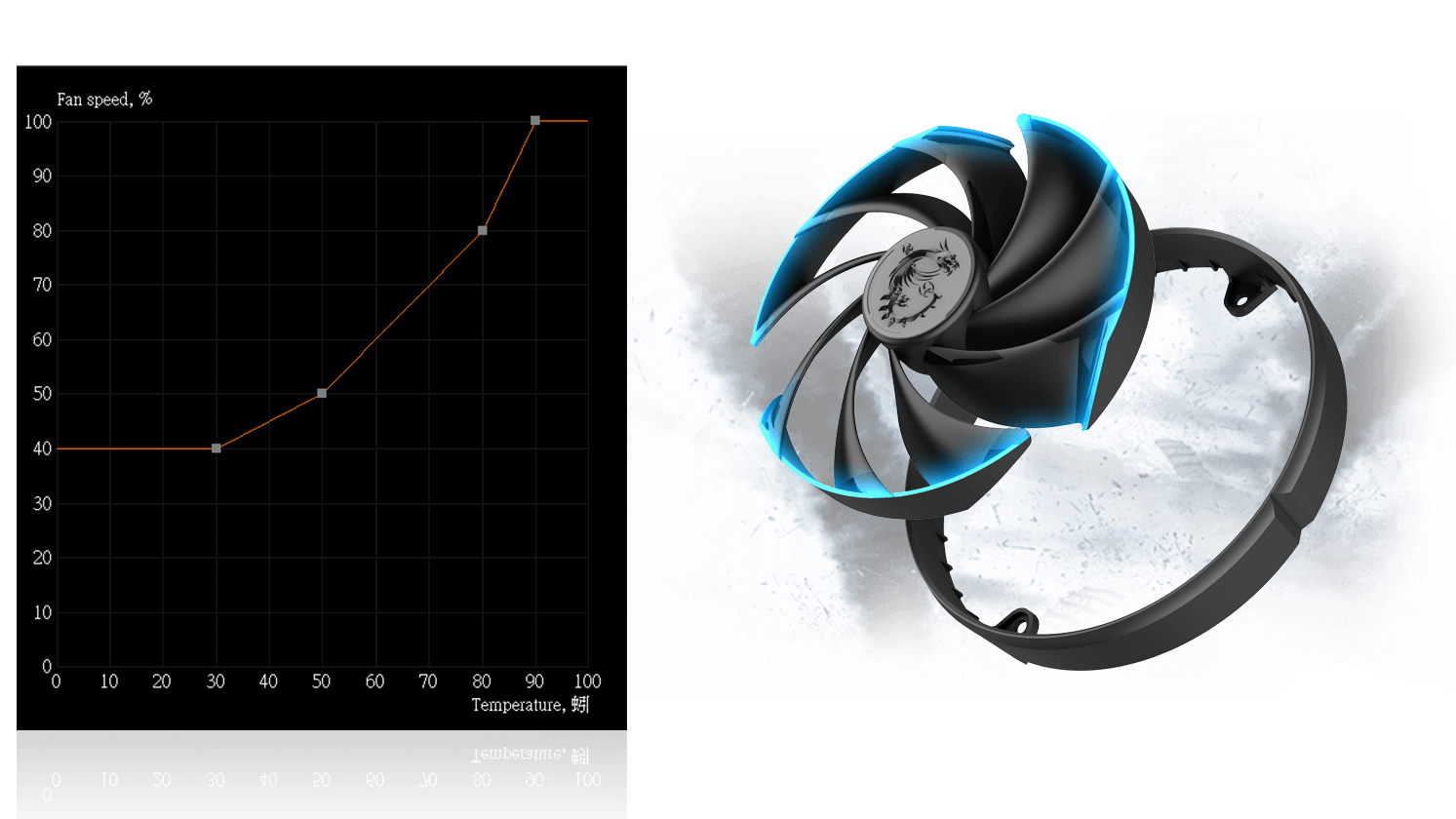
A good curve holds a target temperature under load while keeping idle quiet. Learn how to avoid oscillating fans and abrupt step changes in the fan curve guide.
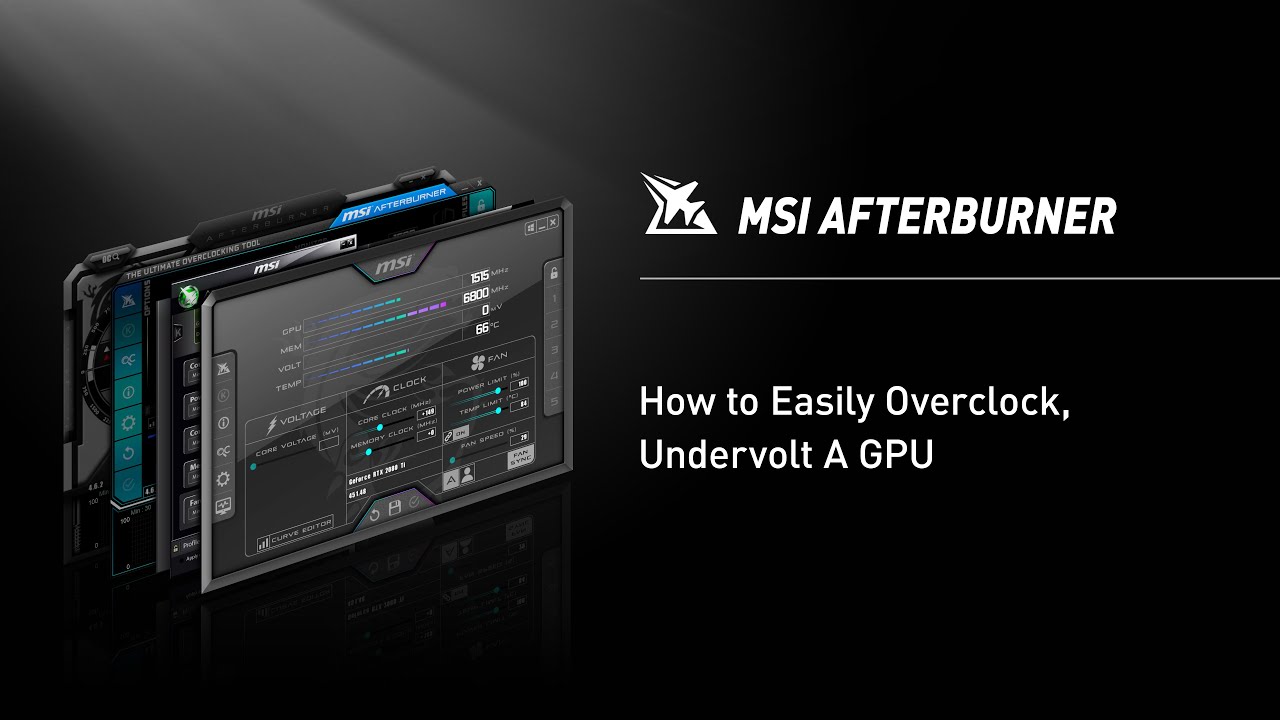
OC Scanner can propose a voltage-frequency curve on supported NVIDIA GPUs. Treat results as a starting point: validate with stress tests and watch for hotspot and power-limit behavior.
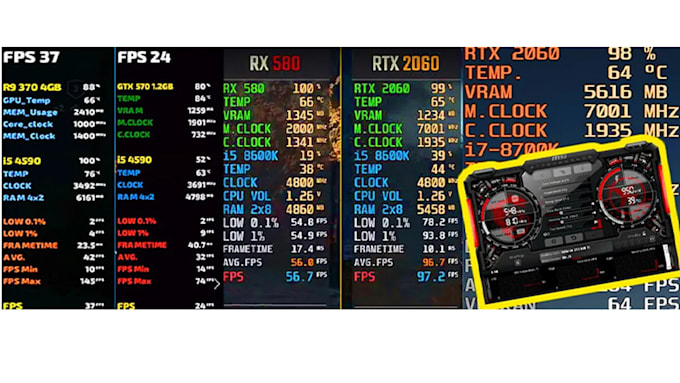
Frametime and FPS overlays help you see stutter and pacing issues that averages hide. RTSS is separate but tightly paired with Afterburner in most setups.
Reality check
Afterburner is powerful because it sits close to the driver stack on many desktops. But it cannot rewrite physics, OEM firmware policies, or missing GPU access. Keeping expectations straight saves hours of blame-shifting.
Recovery order
Panic clicks make things worse. A boring sequence gets you back to a known-good state faster than random reinstalls.
Repeated hard reboots under load can indicate PSU or thermals, not only tuning. Treat that as hardware signal, not a slider puzzle.
Field notes
“I chased max core clock, ignored memory errors, and crashed in games that compiled shaders. Backing off 60 MHz on VRAM mattered more than +120 MHz core.”
“My fans pulsed because the curve had two steep steps near 60°C. Smoothing the middle band stopped the annoying ramp cycle.”
“Afterburner showed power limit throttling: I raised the power limit slightly and the card held boost clocks without a big temperature penalty.”
Troubleshooting
Driver state, multiple GPUs, and certain laptops with MUX quirks can affect availability. Start with a clean driver install plan and verify supported APIs.
Aggressive memory clocks and unstable undervolts are frequent culprits. Reboot to defaults, then change one variable at a time and validate.
RTSS injection can conflict with anti-cheat or exclusive fullscreen modes. Learn scanline sync basics and per-profile exceptions.
Interpret the HUD
Afterburner and RTSS can show a lot of numbers at once. These five explain most “my card is lying to me” moments. They are where tuning decisions should start.
If the card spends time power-limited, raising clocks without touching power or efficiency often does nothing visible. Read what the limiter says before assuming thermals are the whole story.
A comfortable average temperature can still hide a high hotspot under bursty loads. Boost behavior and long-run reliability care about the hot spots, not only the headline GPU temp field.
Core instability tends to crash or reset drivers quickly; memory instability can show up as texture sparkles, random TDRs, or failures deep into a session. Treat them as different hypotheses with different rollback steps.
Fans can report RPM while still hunting between steps on an aggressive curve. If noise rhythm changes with tiny temperature wobble, smooth the curve band where you actually play instead of blaming silicon.
Averages hide stutter. RTSS frametime graphs explain why a title can “feel bad” at high FPS. Pacing issues are a different debug path from overclock headroom.
Vendor labels differ; when wording looks unfamiliar, cross-check the glossary for the underlying idea (limiter, throttling, frametime) instead of memorizing one menu screenshot.
Reference hub
Use the FAQ when you want direct answers and recovery order. Use the glossary when a single misunderstood word is steering you toward the wrong knob.
After a driver change
New branches reshuffle boost tables, API quirks, and sometimes what Afterburner can read. Treat the first boot after an update as a re-baseline, not a continuation of yesterday’s profile by default.
Confirm detection, default limits, and that your old profile is not silently fighting new driver behavior. Grey controls after an update are common. Read them as a signal, not a personal insult.
Driver updates can change how tight a curve behaves under transients. Re-run a short stability pass before trusting an aggressive undervolt from the previous branch.
Injection paths and fullscreen behavior can shift with game patches too. If an overlay disappears, check RTSS application detection before you reinstall half the internet.
Keep a known-good snapshot of fan curves and offsets. When something regresses, you swap back in minutes instead of reconstructing memory from forum screenshots.
Profiles surviving reboots is different from profiles surviving every driver jump. The FAQ covers persistence and recovery order.
Open FAQ (profiles & updates)Video walkthroughs
These thumbnails use on-site stills: each card opens the matching YouTube tutorial in a new tab. Cross-check advice against your GPU generation and driver version.
Thumbnails open YouTube in a new tab: reliable on every host and avoids embed player errors.
Myth busting
Forums love simple rules. Real systems respond to limits, workloads, and silicon variance. So treat these as reminders before you chase numbers for their own sake.
Myth
If I max power and fans first, the rest is free performance.
What usually holds
Power and cooling headroom change where you hit the next wall. They do not remove validation. You can still crash from memory, a too-tight VF curve, or a workload your stress test never touched.
Myth
One short stress test means I am stable forever.
What usually holds
Synthetics and short loops catch gross errors, not every game path. Shader compilation, VRAM pressure, and long sessions exist for a reason. Keep a real title in your test set.
Myth
Higher average FPS always feels smoother.
What usually holds
Pacing matters. Spikes in frametime feel worse than a slightly lower average. RTSS graphs are for diagnosing stutter. Not for bragging rights screenshots alone.
When advice online contradicts what your own graphs show, trust the graphs on your machine and roll back the last change you made.
Download
Prefer the official MSI Afterburner landing page. Confirm the installer is digitally signed when Windows SmartScreen appears. Avoid repack “optimizer” bundles.
This site does not host the installer. Use the download checklist for hygiene, then the FAQ if SmartScreen names an unfamiliar publisher.
Editorial note
GPU generations, driver branches, and anti-cheat policies change. We aim to describe mechanisms (power limits, throttling, injection) in ways that stay true even when exact menu labels shift slightly between versions.
Quick checks
You do not need a weekend course. These tiny rituals prevent the classic failure mode: changing five things, then not knowing which one broke stability.
Hybrid laptops and multi-monitor setups lie with silence. Glance at which adapter Afterburner names before you interpret temperatures or power numbers.
A single before/after image saves arguments with your future self after a driver update. Text notes beat memory for VF and fan shapes.
A repeatable in-game spot beats endless new titles for comparisons. Same location, same graphics preset. Then you are actually comparing runs.
If a thread mentions PerfCap, frametime, or power limit and you nodded anyway, spend sixty seconds on the real definition. It re-aims the next knob you touch.
When you want depth instead of habits alone, the long guides walk symptoms in order.
Browse all guidesNext steps
If you want stability first, read undervolting trade-offs. If you want quieter gaming, start with fan curves. If you want overlays, jump to RTSS basics.